How to see and export your Apple Music listening history
To export your Apple Music listening history, sign in at privacy.apple.com, request a copy of your data and select Apple Media Services Information. Apple prepares a download containing your playback CSV files.
Use the Apple Account you listen with. A computer makes the ZIP files easier to download and inspect.
Only looking for a song you recently played?
How to see recently played songs on iPhone
- Open Music and tap the MiniPlayer while a song is playing.
- Tap Playing Next to open the queue.
- Swipe down to reveal your listening history. Tap a song to play it again.
These steps follow Apple's iPhone User Guide. This on-device recent history helps you find a song; it is not a downloadable archive of every play across years. For that file, use the export steps below.
Export your history in five steps
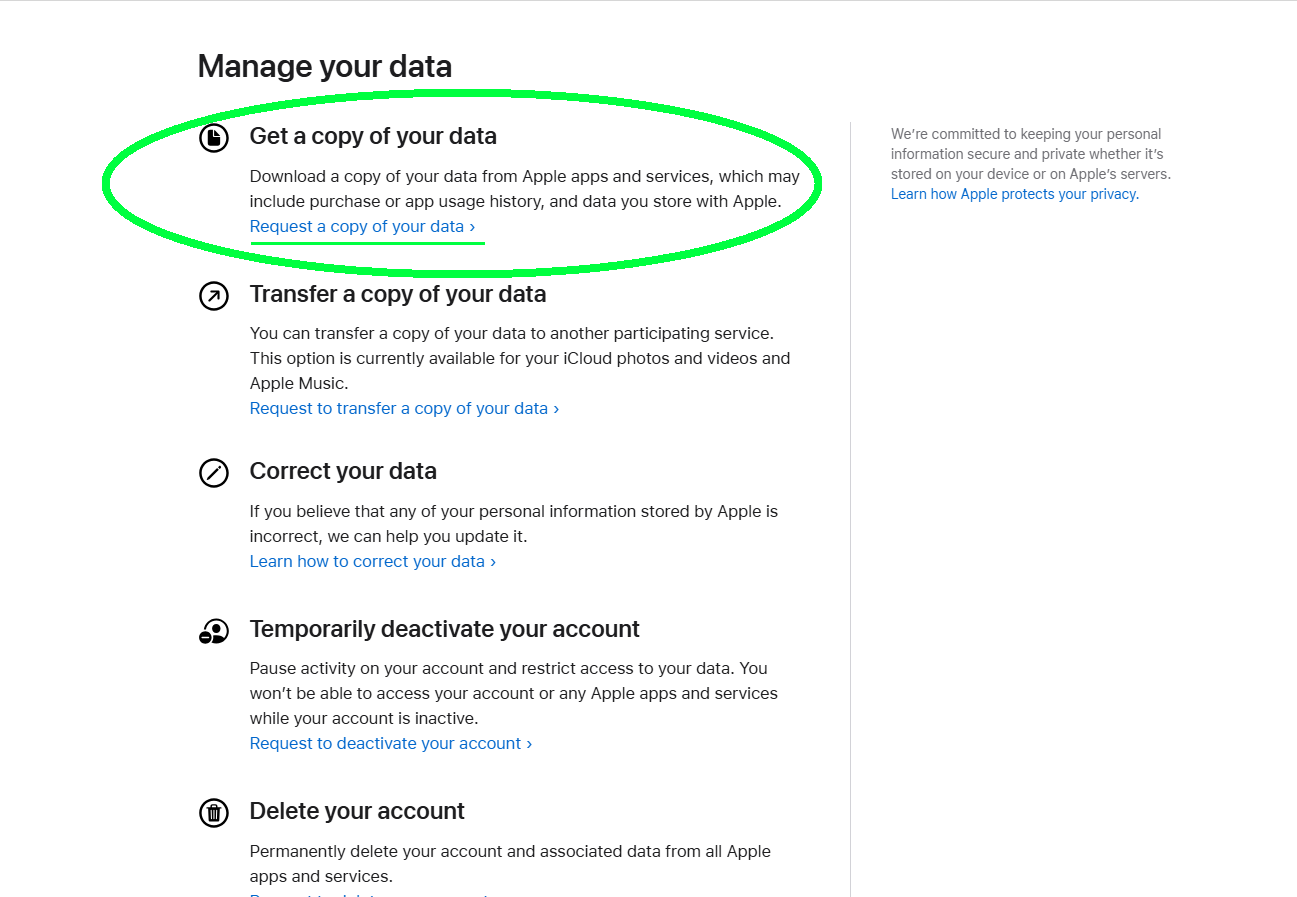
Open privacy.apple.com and sign in. Under Get a copy of your data, choose Request a copy of your data.
Use the copy request. The nearby transfer option is a different workflow.
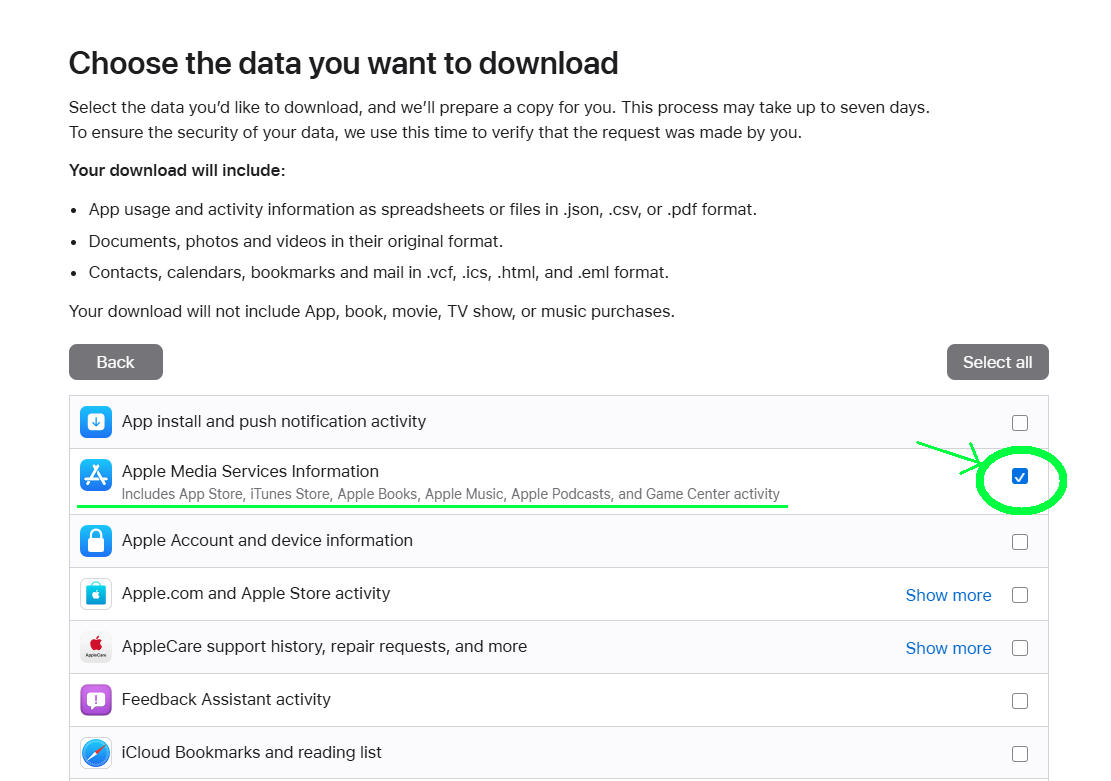
Tick Apple Media Services Information, then scroll down and select Continue. This category includes Apple Music activity.
You can leave the other categories unchecked. Some regions show additional categories.
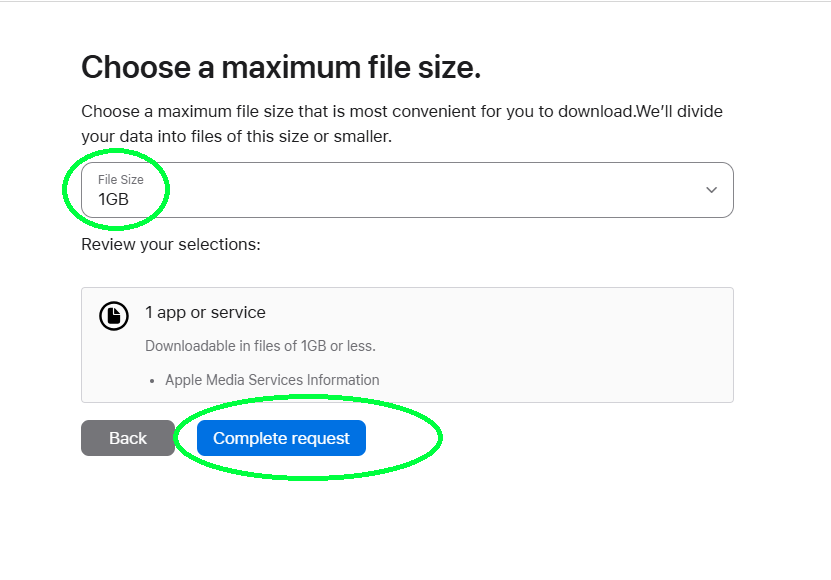
Keep the default maximum file size, or choose one that suits your connection. Select Complete request.
This setting splits large downloads into parts. It does not change how much listening history you request.
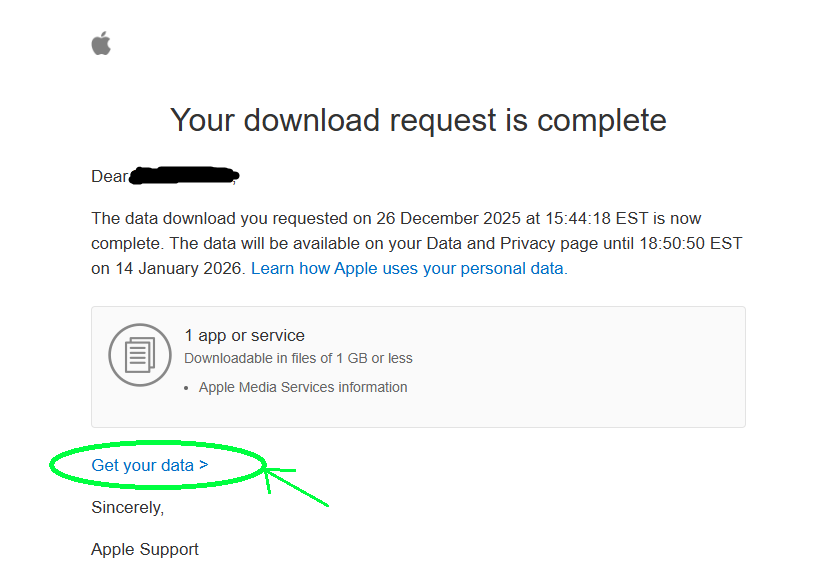
Preparation can take up to seven days. Apple notifies you when the files are ready. Follow Get your data in the email, or return to your Data and Privacy page.
Download every ZIP part within 14 days of the files becoming available. After that, you need to request them again.
Unzip the download. Look inside Apple Media Services, then Apple Music Activity, for these CSV files:
The Play Activity file contains playback events. Daily Tracks groups activity by day. Keep the original ZIP parts; some import tools expect those instead of a CSV.
Apple Media Services
└─ Apple Music Activity
   ├─ Apple Music Play Activity.csv
   └─ Apple Music - Play History Daily Tracks.csv
Export timing, format and download window
| Detail | What to expect | Source |
|---|---|---|
| Where to request | privacy.apple.com, Request a copy of your data | Apple Support |
| Category to tick | Apple Media Services information | mystats.music |
| Time to prepare | Up to about seven days | mystats.music walkthrough |
| Download window | 14 days, then the files are removed | Apple Support |
| Format | One or more ZIP parts, with CSV files inside | mystats.music |
The request and download window follow Apple Support. The music category, file choices and screenshots follow the mystats.music walkthrough.
Read or import your history
Check which file your tool accepts before uploading. You can use the same export in more than one tool.
- In a spreadsheet: open Daily Tracks in Numbers or Excel to examine activity by day. Play Activity is the more detailed event file.
- In a stats tool: mystats.music, stats.fm and Listenality can read Apple history exports. Compare the Apple Music stats apps.
What the file can and cannot tell you
- Dates and playback events: the detailed file includes timestamps, song and album names, and playback duration. An event is not necessarily a completed listen.
- Song matching: the Play Activity file does not supply an artist column or track ID. Tools match names to songs, so some rows may remain unmatched.
- Coverage: an export contains the activity Apple still holds for that account. It is a snapshot, not a live connection.
Keep tracking after the export
For newer plays, request another export or use an app that tracks listening after setup. Listenality combines device play counts and Apple’s recent-play feed; other apps use different methods. Coverage and timestamp precision depend on the source.
About this guide and its screenshots
We make Listenality. This export also works with the other tools named above. The steps use Apple’s instructions and the linked walkthroughs.
The four screenshots are credited references from mystats.music, retrieved October 1, 2026. They are not fresh captures from our own account. The example email shows an older request; Apple may change labels or layout.
Questions
How long does Apple take to send my Apple Music data?
Allow up to seven days for preparation. Apple notifies you when the files are ready and posts them to your Data and Privacy page. You then have 14 days to download them.
Which category should I tick at privacy.apple.com?
Apple Media Services information. It holds your Apple Music activity, library and playlists. The other categories are not needed for listening history.
How long do I have to download the files?
14 days from when Apple posts them. After that Apple removes the files and you need to make a new request.
Does the export include artist names for every play?
Not in the play activity file. It has the song name and album name but no artist field and no track ID, so any tool that counts plays by artist has to match rows to songs first.
What if the export arrives in several parts?
Download every part (for example Part 1 of 2 and Part 2 of 2). The Apple Music files may not be in the first one, and tools that read the export usually want all parts.
Listenality supports Apple Music and YouTube Music on iPhone, and YouTube Music on Android.
Get ListenalitySources and checked dates
- Queue up your music on iPhone, Apple iPhone User Guide (checked )
- Get a copy of the data associated with your Apple Account, Apple Support (checked )
- Get a Copy of Your Apple Account Data, MacRumors (checked )
- How to export Apple Music listening history, mystats.music (checked )
- Apple Music Play History Converter (supported export files), GitHub (checked )
- stats.fm for Apple Music, App Store page (checked )